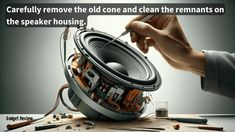
If you are searching for fix my speakers, you are probably dealing with a common audio problem such as no sound, low volume, distorted audio, Bluetooth connection issues, or a speaker that suddenly stopped working. Fortunately, many speaker problems can be identified and fixed with a few simple troubleshooting steps.
Speakers are used with phones, computers, televisions, gaming consoles, cars, and other devices. Because they connect through different methods, the cause of an audio problem can vary. Before replacing your speakers or paying for professional repairs, it is worth checking the basic connections and settings.
This guide explains practical ways to diagnose common speaker problems and get your audio working again.
Check the Speaker Connection
The first step when trying to fix my speakers is checking the physical connection. If you are using wired speakers, make sure the audio cable is securely connected to both the speaker and the device.
For USB-powered speakers, check whether the USB cable is properly connected. If the speaker has a separate power adapter, make sure it is plugged into a working outlet.
A loose cable can cause intermittent sound, crackling, or complete loss of audio.
If possible, try another compatible cable. A damaged cable may look normal from the outside while having an internal connection problem.
Check the Volume Settings
Sometimes there is nothing wrong with the speakers themselves. The problem may simply be that the volume is muted or turned down.
Check the following:
- Increase the device volume.
- Make sure the speaker itself is not muted.
- Check the application’s volume.
- Make sure headphones are not selected as the output device.
- Check the system’s audio settings.
For example, if your computer is connected to external speakers but the operating system is sending audio to headphones, your speakers will appear to be malfunctioning even though they are working correctly.
Troubleshoot Bluetooth Speakers
Bluetooth speakers are convenient, but wireless connections can sometimes create problems.
If your Bluetooth speaker is not producing sound, first make sure Bluetooth is enabled on your device. Then confirm that the correct speaker is connected.
You can also disconnect the speaker and pair it again.
If the speaker does not connect, try these steps:
- Turn the speaker off.
- Turn Bluetooth off on your phone or computer.
- Wait a few seconds.
- Turn Bluetooth back on.
- Turn the speaker on again.
- Pair the devices again.
Keep the speaker reasonably close to the device during pairing. Other wireless devices can sometimes interfere with Bluetooth connections.
Restart Your Device and Speaker
A simple restart can solve surprisingly many audio problems.
Turn your speaker off and wait for a few seconds before turning it back on. If you are using a computer or smartphone, restart that device as well.
Temporary software errors can prevent audio from reaching the speaker. Restarting both devices gives the connection a fresh start.
This is one of the easiest things to try when searching for ways to fix my speakers.
Check the Audio Output Device
Computers and smartphones can have multiple audio output options. Your device may accidentally select the wrong one.
On a computer, open the sound settings and look for the output device. Select your external speaker if it is available.
If you have connected multiple audio devices, such as headphones, monitors, Bluetooth speakers, and USB audio devices, make sure the correct one is selected.
This is especially important after connecting a new monitor or Bluetooth device because the system may automatically change the audio output.
What to Do When Speakers Have No Sound
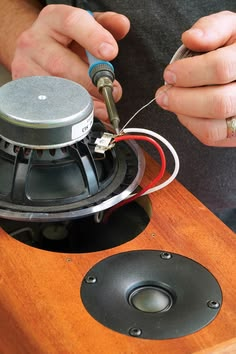
If your speakers have completely stopped producing sound, work through the basic checks first.
Make sure the speaker is powered on and check whether any indicator light is active. Then test the speaker with another device if possible.
For example, if the speaker does not work with your computer, connect it to another compatible device. If it works there, the original device may have an audio setting or connection problem.
If it does not work with any device, the speaker, power supply, cable, or internal components may be responsible.
Fix Low or Weak Speaker Volume
Low volume can be caused by software settings, a poor connection, or the speaker itself.
Start by increasing the volume on both the source device and speaker. Some speakers have separate volume controls, so check both.
You should also look for audio settings such as volume limits, equalizer controls, or sound enhancements.
If the speaker is battery-powered, check the battery level. Some wireless speakers reduce performance when the battery is very low.
Also make sure the speaker’s openings are not blocked by dust or objects.
Fix Distorted or Crackling Sound
Distorted sound can be caused by excessive volume, damaged cables, Bluetooth interference, or a speaker component problem.
Try lowering the volume first. If distortion disappears at a lower volume, the speaker may simply be struggling with a high output level.
For wired speakers, try another cable or audio source. For Bluetooth speakers, move closer to the connected device and reduce potential wireless interference.
If distortion occurs consistently at normal volume levels across different devices, the speaker may have a hardware problem that requires professional inspection.
Clean Your Speakers Carefully
Dust and debris can affect speaker performance, especially when they accumulate around the speaker grille.
Turn the speaker off before cleaning it. Use a soft, dry cloth to remove surface dust. Avoid pushing objects into the speaker openings.
Do not pour liquid directly onto the speaker. If the manufacturer provides specific cleaning instructions, follow those instructions instead.
Regular gentle cleaning can help keep the speaker grille clear and maintain good sound quality.
Check for Software and Driver Problems
When using speakers with a computer, outdated or malfunctioning audio drivers can cause sound problems.
Check whether your operating system recognizes the speaker. If it does not, look at the device or sound settings for errors.
Installing available system and driver updates may resolve compatibility problems. However, only use drivers from trustworthy sources, such as the computer or component manufacturer’s official website.
If the speaker worked previously and stopped after a software update, restarting the system and checking the audio configuration can help identify the issue.
Test the Speaker With Another Device
One of the best troubleshooting methods is testing the speaker with another compatible device.
Suppose your speaker does not work with your laptop. Connect it to a phone, tablet, television, or another compatible device.
If the speaker works normally with the second device, the speaker is probably fine and the original device needs troubleshooting.
If it fails everywhere, the problem is more likely related to the speaker, cable, power source, or internal hardware.
This simple test can save time by helping you identify which component is actually causing the problem.
When Professional Repair May Be Necessary
Basic troubleshooting can solve many speaker problems, but some issues require professional assistance.
Consider professional repair if the speaker has suffered physical damage, has a persistent internal fault, produces unusual electrical sounds, or does not power on despite testing the cable and power source.
Do not open electrical equipment unless you are qualified to work on it. Internal components can be damaged easily, and powered equipment may present electrical hazards.
If your speaker is still under warranty, contacting the manufacturer or authorized service provider may be a better option than attempting a repair yourself.
Prevent Future Speaker Problems
Once you successfully fix my speakers, a few simple habits can help prevent similar problems.
Keep speakers away from moisture unless they are specifically designed to be water-resistant. Avoid dropping or heavily impacting them. Keep cables organized and avoid bending them sharply.
For Bluetooth speakers, charge the battery according to the manufacturer’s recommendations. Keep firmware and connected devices updated when appropriate.
Cleaning the speaker gently and avoiding extreme volume levels can also help maintain consistent performance.
Final Thoughts
When you search for fix my speakers, the solution may be much simpler than expected. Start with basic checks such as power, cables, volume, Bluetooth pairing, and audio output settings. Then test the speaker with another device to determine whether the problem comes from the speaker or the connected equipment.
Many common audio problems can be resolved without replacing the speaker. However, persistent hardware issues or physical damage may require professional service.
By following a logical troubleshooting process, you can identify the cause of the problem and get back to enjoying clear, reliable audio.