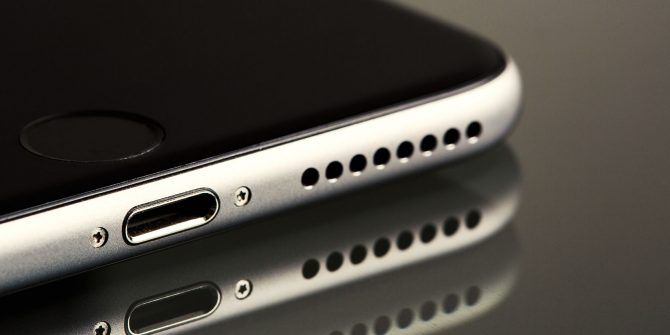
If you are searching for fix my speaker sound, you are probably dealing with an audio problem such as low volume, distorted sound, crackling, buzzing, or a speaker that suddenly stops working. The good news is that many speaker problems can be solved with a few simple checks.
Whether you are using a phone speaker, computer speaker, Bluetooth speaker, car speaker, or home audio system, troubleshooting the problem step by step can help you identify the cause and restore clear sound.
Why Does My Speaker Sound Bad?
There are several reasons why speaker audio may not sound normal. The problem can come from your device settings, connection, speaker hardware, audio source, or software.
Common causes include:
- Low device or speaker volume
- Bluetooth connection problems
- Dust or debris around the speaker
- Damaged cables
- Incorrect audio settings
- Outdated software or drivers
- Weak battery
- Poor-quality audio files
- Physical speaker damage
- Interference from nearby wireless devices
Before assuming that your speaker is permanently damaged, try some basic troubleshooting steps.
Check the Volume First
The simplest solution is to check the volume. Your device may have separate volume controls for media, notifications, calls, and connected Bluetooth devices.
Increase the volume on both your source device and the speaker. If you are using a Bluetooth speaker, check whether the speaker has its own physical volume buttons.
Also make sure that mute mode is not enabled.
If the volume is high but the sound remains unusually quiet, continue with the next troubleshooting steps.
Restart Your Device and Speaker
A simple restart can fix temporary software or connection problems.
Turn off your speaker and your phone, tablet, or computer. Wait a few seconds and turn them back on. Then reconnect the speaker and play an audio file.
This can refresh the Bluetooth connection, clear temporary software glitches, and restore normal audio output.
For computers, restarting can also reload audio drivers and system services that control sound.
Check the Bluetooth Connection
If you are using a wireless speaker, Bluetooth may be responsible for poor audio quality.
Keep your phone or computer reasonably close to the speaker and remove unnecessary obstacles between the devices. Then disconnect and reconnect the Bluetooth connection.
You can also remove the speaker from your device’s Bluetooth list and pair it again.
If the speaker works correctly with another device, the problem may be related to the original phone, computer, or tablet rather than the speaker itself.
Clean the Speaker Carefully
Dust and debris can affect speaker performance, particularly when they collect around the speaker grille.
If the speaker sounds muffled, inspect the grille for visible dirt. Clean the exterior gently with a soft, dry cloth.
Avoid pushing objects into the speaker openings. Do not pour liquid directly onto the speaker, because moisture can damage electronic components.
Keeping the speaker grille clean can help maintain clearer sound.
Check Audio Settings
Incorrect audio settings can make a speaker sound unbalanced or distorted.
Look at your device’s sound settings and check options such as:
- Equalizer
- Bass boost
- Treble
- Balance
- Mono audio
- Spatial audio
- Sound enhancements
- Volume limits
If you recently changed an equalizer or sound-enhancement setting, try returning it to the default configuration.
For computers, also make sure that the correct speaker output device is selected.
Fix Crackling or Distorted Sound
Crackling, popping, or distorted audio can have several causes.
First, reduce the volume slightly. Speakers may produce distortion when pushed beyond what they can handle comfortably.
Next, try playing a different song or video. If only one audio file sounds distorted, the file itself may be the problem.
If every audio source produces distortion, test the speaker with another device. This helps determine whether the issue is with the speaker or the original device.
For wired speakers, inspect the cable and connectors for visible damage or loose connections.
Fix Low or Muffled Speaker Sound
When speaker sound is unusually low or muffled, check whether anything is covering the speaker grille. A case, protective cover, dust, or another object may reduce the sound.
For smartphones and tablets, make sure your fingers are not covering the speaker openings while holding the device.
If the sound became muffled after exposure to moisture, allow the device to dry naturally in a safe environment and avoid using heat directly on it.
If the problem continues, professional inspection may be necessary.
Check Your Speaker Battery
Bluetooth speakers can behave differently when their battery is very low. If your speaker is producing weak or unstable audio, charge it fully and test it again.
A charging problem can also cause unexpected behavior. Check the charging cable, adapter, and charging port for obvious damage.
If the battery no longer holds a charge properly, the speaker may require service or battery replacement.
Test the Speaker With Another Device
One of the most useful troubleshooting methods is testing the speaker with another phone, tablet, or computer.
For example, if your speaker sounds distorted when connected to your phone but works perfectly with another device, the speaker may be fine.
In that situation, check the original device’s Bluetooth settings, audio configuration, operating system, and applications.
If the same problem occurs with multiple devices, the speaker itself is more likely to be responsible.
Update Software and Drivers
Software can also affect audio performance.
On a computer, check for available operating system updates and audio-driver updates. On smartphones and tablets, install available system updates through the official device settings.
Keeping software updated can resolve compatibility issues and improve communication between your device and audio hardware.
When Should You Get Professional Help?
Basic troubleshooting can solve many speaker problems, but some issues require professional repair.
Consider getting help if:
- The speaker has suffered physical damage
- The speaker stopped working after liquid exposure
- There is persistent distortion at normal volume
- The speaker repeatedly disconnects
- The charging system no longer works
- The speaker produces unusual electrical noise
- None of the troubleshooting steps make a difference
Do not open an electronic speaker unless you know how to safely work with its components. Professional inspection is safer for serious hardware problems.
Final Thoughts
If you searched for fix my speaker sound, start with the easiest solutions first. Check the volume, restart your devices, reconnect Bluetooth, inspect the speaker grille, review audio settings, and test the speaker with another device.
These steps can help identify whether the problem is caused by settings, connectivity, software, or hardware. If the speaker continues to produce poor sound after troubleshooting, professional repair or replacement may be the best option.
With regular cleaning, careful handling, appropriate volume levels, and updated software, you can help keep your speaker working properly and enjoy better audio quality for longer.