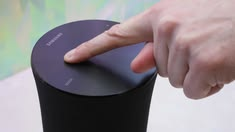
If you are searching for find my speaker, you may be trying to locate a Bluetooth speaker, reconnect a speaker that disappeared from your device, or troubleshoot a speaker that is not producing sound. Fortunately, many speaker problems can be solved with a few simple checks.
Speakers are essential for listening to music, watching videos, attending online classes, making calls, and enjoying other types of digital content. When a speaker cannot be found or suddenly stops working, the problem can be frustrating. The good news is that you usually do not need advanced technical knowledge to identify the cause.
This guide explains how to find my speaker, reconnect it, check Bluetooth settings, troubleshoot sound problems, and improve your speaker connection.
What Does “Find My Speaker” Mean?
The phrase find my speaker can refer to several different situations. You might be trying to find a physical Bluetooth speaker nearby, locate a speaker that is connected to your phone, or identify why your computer cannot detect its built-in or external speaker.
For Bluetooth speakers, the first step is usually to check whether Bluetooth is enabled on your device. You should also make sure the speaker is turned on and discoverable.
If you are looking for a physical speaker that you misplaced, you may need to check its last known location, connected-device information, or use a compatible tracking feature if the speaker supports one.
How to Find My Speaker Using Bluetooth
Bluetooth is one of the easiest ways to connect a wireless speaker to a phone, tablet, or computer.
Start by turning on the speaker. Most Bluetooth speakers have a dedicated Bluetooth or pairing button. Pressing it may place the speaker into pairing mode.
Next, open the Bluetooth settings on your phone or computer. Look at the list of available devices and search for the speaker’s name.
Once you see your speaker, select it and wait for the connection to complete.
If the speaker does not appear, try these steps:
- Make sure the speaker is powered on.
- Keep the speaker close to your device.
- Check that Bluetooth is enabled.
- Disconnect the speaker from another nearby device.
- Restart Bluetooth.
- Restart both the speaker and your phone or computer.
- Put the speaker into pairing mode again.
These basic steps can solve many Bluetooth discovery problems.
Find My Speaker on Android
If you use an Android phone, you can usually find a Bluetooth speaker through the phone’s Bluetooth settings.
Open Settings and look for Connected devices, Bluetooth, or a similar option. The exact name may vary depending on your Android version and phone manufacturer.
Turn Bluetooth on and check the available devices. If your speaker is already paired, it may appear under previously connected devices.
If it is not visible, activate pairing mode on the speaker and refresh the Bluetooth device list.
You should also check whether another phone, tablet, or laptop is already connected to the speaker. Many speakers can automatically reconnect to a previously used device, preventing your current phone from finding or connecting to it.
Find My Speaker on iPhone
On an iPhone, open Settings > Bluetooth and make sure Bluetooth is enabled.
Place your Bluetooth speaker into pairing mode and keep it relatively close to the iPhone. The speaker should appear under available devices if it is discoverable.
Tap the speaker’s name to connect.
If it does not appear, turn Bluetooth off and back on, restart the speaker, and try again. You can also check whether the speaker is connected to another device.
If the speaker appears but refuses to connect, you may need to remove the old pairing and connect it again.
How to Find a Speaker That Is Not Making Sound
Sometimes the speaker is connected correctly, but there is no audio. In this situation, the problem may not be related to finding the speaker.
First, check the volume level on both the device and speaker. Some Bluetooth speakers have independent volume controls.
Then check the audio output settings on your phone or computer. Your device may still be sending sound through its internal speaker, headphones, or another Bluetooth device.
On a computer, look at the sound settings and select the correct output device.
On a phone, check the media output or audio-output menu when playing music or video.
Also make sure that the application you are using is not muted.
Why Can’t I Find My Bluetooth Speaker?
There are several reasons why a Bluetooth speaker may not appear in your device’s available-device list.
The Speaker Is Turned Off
A simple power issue can prevent discovery. Charge the speaker and turn it on before attempting to connect.
The Speaker Is Not in Pairing Mode
Many Bluetooth speakers only appear to new devices when pairing mode is activated.
The Speaker Is Connected Somewhere Else
Your speaker may automatically connect to a previously paired phone, tablet, or computer. Disconnect it from that device before trying again.
The Battery Is Too Low
Some speakers stop broadcasting Bluetooth signals when their battery becomes critically low. Charging the speaker can resolve the problem.
The Devices Are Too Far Apart
Bluetooth works best when devices are relatively close together. Move your phone or computer closer to the speaker while pairing.
How to Reset a Bluetooth Speaker
If normal troubleshooting does not work, resetting the speaker may help.
The reset procedure varies by manufacturer and model. Some speakers use a dedicated reset button, while others require holding one or more buttons for several seconds.
Before resetting, check the speaker’s official instructions for the correct procedure. A reset may remove previously stored Bluetooth connections, so you may need to pair the speaker again afterward.
How to Find Your Speaker on a Laptop
If you are using Windows or another computer operating system, open the sound and Bluetooth settings.
For a Bluetooth speaker, check the Bluetooth device list and make sure the speaker is connected. Then check the computer’s audio-output settings and select the speaker as the active output device.
If the speaker is connected but you still cannot hear anything, check the system volume and application volume.
You can also disconnect and reconnect the speaker. Restarting the computer can help if the Bluetooth or audio service has temporarily stopped responding.
Wired Speaker Troubleshooting
Not every speaker uses Bluetooth. If your speaker connects through a cable, check the physical connection first.
Make sure the cable is securely inserted into the correct port. If the speaker requires external power, verify that it is switched on.
Try another compatible cable or port if available. A damaged cable or loose connection can prevent the speaker from working even though the speaker itself is fine.
For desktop computers, also verify that the speaker is connected to the correct audio output.
How to Improve Your Speaker Connection
Once you find my speaker and connect it successfully, you may want to improve connection stability.
Keep the speaker and connected device reasonably close together. Avoid placing them behind large objects or near sources of significant wireless interference.
Keep your device’s operating system and Bluetooth drivers updated when updates are available.
If the connection repeatedly drops, remove the speaker from your paired-device list and pair it again.
You should also make sure the speaker has enough battery power.
When Your Speaker May Need Professional Help
If you have tried the basic troubleshooting steps and the speaker still does not work, there may be a hardware problem.
Possible hardware issues include a damaged charging port, faulty battery, damaged speaker components, or internal electronic failure.
Avoid opening the speaker yourself unless you are qualified to repair electronic equipment. For a valuable or recently purchased speaker, contacting the manufacturer or an authorized repair service is usually the safer option.
Final Thoughts
Knowing how to find my speaker can save time when a Bluetooth or wired speaker suddenly disappears, refuses to connect, or stops producing sound. Start with simple checks such as power, Bluetooth settings, pairing mode, distance, battery level, and audio-output settings.
If the speaker is connected but silent, check the selected audio output and volume controls. If Bluetooth pairing continues to fail, removing the old connection and pairing the speaker again can often help.
Most common speaker problems are relatively easy to troubleshoot. With a few basic checks, you can usually identify whether the issue is related to connectivity, settings, power, or the speaker’s hardware.