
If your device is producing low, distorted, or no sound, you may be wondering, check my speaker—is there an easy way to find out whether the speaker is working correctly? Fortunately, you can test your speaker in just a few minutes using an online speaker test or your device’s built-in sound settings.
Speakers are important for watching videos, listening to music, attending online classes, playing games, and making video calls. When something goes wrong, the problem may be caused by the speaker itself, incorrect volume settings, muted audio, outdated drivers, Bluetooth connections, or software problems.
This guide explains how to check my speaker, identify common audio issues, and take simple steps to improve your sound.
What Does “Check My Speaker” Mean?
The phrase check my speaker usually refers to testing whether your device’s speakers are producing sound correctly. A speaker test can help you determine whether the left and right channels work, whether the volume is sufficient, and whether the audio sounds clear.
You can check speakers on many devices, including:
- Smartphones
- Windows PCs
- Laptops
- Mac computers
- Tablets
- Headphones and external speakers
An online speaker test can be particularly useful because it allows you to play test sounds directly through your device’s audio output.
Why Should You Check Your Speaker?
Testing your speaker can help identify problems before they become more difficult to troubleshoot. For example, if you notice that videos have no sound, testing the speaker can tell you whether the issue affects the entire device or only a specific application.
A speaker test can help you identify:
- No sound
- Very low volume
- Distorted audio
- Crackling sounds
- Uneven left and right audio
- Intermittent sound
- Muffled audio
- Unexpected audio from another device
Regular testing can also be useful after installing a new operating system, updating audio drivers, connecting Bluetooth devices, or changing sound settings.
How to Check My Speaker Online
One of the easiest methods is to use an online speaker testing tool. These tools play audio through your selected output device so you can confirm whether it is working.
Step 1: Open a Speaker Test
Open a reliable online speaker test tool using your browser. Make sure the website is allowed to play audio.
Step 2: Check Your Volume
Before starting the test, increase your device volume to a comfortable level. Also check whether the device is muted.
Step 3: Start the Test
Press the test or play button. Listen carefully to the sound coming from your speaker.
Step 4: Listen for Problems
Pay attention to whether the audio is clear and consistent. If the sound is distorted, extremely quiet, or missing completely, you may need to troubleshoot your device.
Step 5: Test Different Outputs
If your device has multiple audio outputs, make sure the correct speaker is selected. Your computer may accidentally be sending sound to Bluetooth headphones, a monitor, or another connected device.
How to Check Speakers on Windows
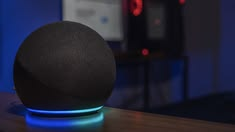
Windows provides several ways to test audio output.
First, click the speaker icon in the taskbar and make sure the correct output device is selected. Increase the volume and play a video or audio file.
You can also open the sound settings and locate the selected output device. Use the built-in test option if available.
If there is still no sound, check whether an application has its own volume control. Some programs can be muted independently from the main Windows volume.
Another possible cause is an audio driver problem. Updating or reinstalling the appropriate sound driver may resolve issues caused by corrupted or outdated software.
How to Check a Speaker on a Phone
Checking a smartphone speaker is usually straightforward.
Start by increasing the media volume and playing a video or music track. Make sure the phone is not connected to Bluetooth headphones or another external audio device.
If the sound is unusually quiet, check whether the speaker openings are blocked by dust or debris. Keep the device’s speaker area clean, but avoid inserting sharp objects into the speaker openings.
You can also use an online speaker test through your phone’s browser. This can help confirm whether the speaker produces normal audio.
Common Speaker Problems
1. No Sound
If there is no sound at all, first check the volume and mute settings. Then make sure the correct output device is selected.
2. Low Volume
Low volume can result from incorrect settings, blocked speaker openings, or application-specific volume controls.
3. Distorted Sound
Distortion may become noticeable when the volume is extremely high. Try reducing the volume and testing the speaker again.
4. Crackling Audio
Crackling may be caused by software problems, damaged hardware, loose connections, or interference with wireless devices.
5. Only One Speaker Works
If your device supports stereo audio, check its left-right balance settings. Incorrect balance settings can make one channel appear silent.
How to Fix Speaker Problems
Once you check my speaker, you can take several basic troubleshooting steps.
Start by restarting the device. A simple restart can sometimes resolve temporary audio problems.
Next, check all volume controls. Your operating system, application, media player, and connected device may each have separate volume settings.
If you are using Bluetooth, disconnect and reconnect the device. You can also temporarily turn Bluetooth off to determine whether the problem is related to another connected audio device.
For computers, check for available audio driver updates. If the issue began immediately after an update, reviewing the audio driver settings may also help.
If your speaker still does not work after software troubleshooting, the problem could be hardware-related. In that situation, professional inspection may be necessary.
Tips for Better Speaker Testing
For a more accurate test, follow these simple tips:
- Test at a moderate volume first.
- Disconnect unnecessary Bluetooth audio devices.
- Close applications that may control audio.
- Test multiple audio files.
- Try an online speaker testing tool.
- Check both left and right channels when applicable.
- Restart your device if audio suddenly stops.
- Keep speaker openings clean and unobstructed.
Can an Online Speaker Test Damage My Speaker?
A normal online speaker test should not damage a properly functioning speaker when used at a reasonable volume. However, playing audio at extremely high volume can cause discomfort and may put unnecessary stress on speakers.
For this reason, begin testing at a moderate volume and increase it only when necessary.
Final Thoughts
Knowing how to check my speaker can save time when you experience audio problems. Whether you are using a smartphone, laptop, desktop computer, or another device, a quick speaker test can help determine whether the issue is related to the speaker, volume settings, software, or audio output selection.
Start with simple checks such as volume, mute settings, Bluetooth connections, and the selected output device. If the problem continues, try restarting your device and checking software or driver settings.
An online speaker test is a convenient way to confirm whether your speakers are producing clear and consistent audio. If basic troubleshooting does not solve the issue, the speaker may require professional repair or replacement.