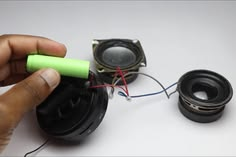
A speaker can suddenly stop working, produce distorted audio, or connect to a device without playing any sound. These problems can be frustrating, especially when you need your speaker for music, videos, presentations, gaming, or calls. Fortunately, many common speaker issues can be solved with a few simple troubleshooting steps.
If you are searching for ways to fix speaker problems, the first step is to identify what is causing the issue. The problem may come from the speaker itself, your phone or computer, Bluetooth settings, cables, power, volume controls, or audio settings.
This guide explains some of the most common speaker problems and practical ways to troubleshoot them.
Why Is My Speaker Not Working?
There are several reasons why a speaker may stop working. Before trying complicated solutions, check the basics.
Make sure the speaker is turned on and has enough battery power. If it is a wired speaker, check whether the power cable is properly connected. For Bluetooth speakers, confirm that Bluetooth is enabled on your device and that the speaker is connected.
You should also check the volume on both the speaker and the connected device. Sometimes the speaker is working correctly, but the volume is muted on the phone, laptop, tablet, or computer.
If these basic checks do not solve the issue, continue with the troubleshooting methods below.
How to Fix Speaker With No Sound
No sound is one of the most common speaker problems. Start by checking the volume level on your device and speaker.
If you are using a computer, open the sound settings and make sure the correct output device is selected. Your computer may be sending audio to headphones, a monitor, another Bluetooth device, or a different speaker.
For a phone or tablet, disconnect Bluetooth temporarily and test the built-in speaker. If sound works after disconnecting Bluetooth, another connected device may have been selected as the audio output.
Restarting your device can also help. Temporary software problems can sometimes prevent audio from working correctly.
Fix Speaker With Low Volume
If your speaker works but the sound is too quiet, check the volume controls first. Increase the volume on both the speaker and the connected device.
Some applications also have their own volume controls. For example, a media player or video application may have a separate volume setting.
If the speaker has an equalizer, sound enhancement, or audio mode, check those settings as well. An incorrect configuration can make audio sound unusually quiet.
For Bluetooth speakers, move the speaker closer to the connected device. A weak wireless connection can sometimes affect audio performance.
How to Fix Speaker Distortion
Distorted sound can make music and speech difficult to understand. It may sound like buzzing, crackling, or unwanted noise.
First, lower the volume. Playing audio at extremely high volume can cause distortion, especially when the speaker is unable to handle the audio level.
Next, check the audio source. Play a different song, video, or audio file. If only one file sounds distorted, the problem may be with that recording rather than the speaker.
You can also disable audio enhancements or equalizer effects temporarily. Excessive bass or other sound adjustments can sometimes create distortion.
If distortion continues at normal volume with multiple audio sources, there could be a hardware problem.
How to Fix Bluetooth Speaker Connection Problems
Bluetooth connection issues are common with wireless speakers. If your device cannot find the speaker, start by turning Bluetooth off and on again.
Make sure the speaker is in pairing mode. Then open the Bluetooth settings on your phone, tablet, or computer and look for the speaker in the available devices list.
If the speaker appears but will not connect, remove or forget the speaker from your device’s Bluetooth settings. Then restart both devices and try pairing them again.
Keeping the speaker close to your device can also improve the connection.
If the speaker is already connected to another phone or computer, disconnect it from that device before attempting a new connection.
Fix Speaker That Keeps Disconnecting
A Bluetooth speaker that repeatedly disconnects may have a weak connection, low battery, or interference from other wireless devices.
Start by charging the speaker fully. Then keep your phone or computer within a reasonable distance.
You can also restart Bluetooth and reconnect the speaker. If the problem continues, forget the Bluetooth connection and pair the devices again.
If multiple devices are competing for the same speaker, disconnect unnecessary devices.
How to Fix Speaker Buzzing or Crackling

Buzzing and crackling noises can have several causes. With wired speakers, check the cable and connectors. A damaged or loose cable can produce unwanted noise.
Try another audio cable if one is available. You can also test the speaker with another device.
For Bluetooth speakers, move away from potential sources of wireless interference and test the speaker again.
If the buzzing remains regardless of the connected device, the speaker may have an internal hardware issue that requires professional inspection.
Fix Speaker That Is Not Charging
If a portable speaker does not charge, check the charging cable, power adapter, and charging port.
Try another compatible charging cable and power source if available. Make sure the charging connector is inserted correctly.
Inspect the charging port for visible dust or debris, but avoid forcing anything into the port.
If the speaker still does not charge after trying a suitable cable and power source, the battery or charging hardware may need professional attention.
How to Fix Speaker on a Computer
If your computer cannot produce sound through a speaker, check the selected audio output device.
On Windows, open the sound settings and select your speaker as the output device. On other computers, look for the audio or sound settings and verify the correct output.
You should also check whether the speaker is muted.
If you recently connected headphones, a monitor, or another audio device, your computer may have automatically switched the output.
Restarting the computer can also resolve temporary audio software problems.
How to Fix Speaker on a Phone
When your phone speaker stops producing sound, first check the volume and silent settings.
Play a video or music file to test the speaker. If there is still no sound, check whether Bluetooth headphones or another wireless device is connected.
Restart the phone and test the speaker again.
If the phone’s speaker sounds unusually quiet or distorted across multiple applications, check the speaker opening for visible dust or blockage. Do not use sharp objects or excessive force to clean it.
If the problem continues, professional repair may be necessary.
When Should You Get Professional Help?
Not every speaker problem can be solved through software or basic troubleshooting. Professional help may be appropriate if the speaker has suffered physical damage, has persistent distortion, will not power on, has a damaged charging port, or continues malfunctioning after basic troubleshooting.
Avoid opening electrical devices unless you have the appropriate technical knowledge and equipment. Internal components can be damaged easily, and incorrect repairs may make the problem worse.
Final Thoughts on How to Fix Speaker
Knowing how to fix speaker problems can save time and help you determine whether an issue is simple or requires professional attention. Start with basic checks such as power, volume, cables, Bluetooth connections, and audio output settings.
For Bluetooth speakers, reconnecting the device and keeping it close can often solve connection problems. For wired speakers, checking cables and connections is an important first step. If you experience distortion, buzzing, or charging problems, testing the speaker with another compatible device can help identify the source of the issue.
If basic troubleshooting does not work, the speaker may have a hardware problem. In that situation, professional inspection is usually the safest option.