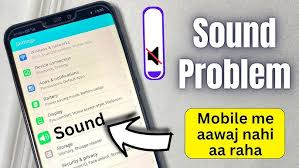
A speaker sound problem can make phone calls, videos, music, games, and notifications difficult to hear. Your phone speaker may suddenly become quiet, distorted, muffled, crackling, or completely silent. In many cases, the issue is caused by simple problems such as dust buildup, low volume settings, Bluetooth connections, moisture, or temporary software errors.
Before assuming that your smartphone speaker is permanently damaged, it is worth checking a few basic settings and cleaning the speaker safely. Many common sound issues can be fixed without replacing any hardware.
This guide explains the main causes of a speaker sound problem, how to troubleshoot it, how to clean your phone speaker safely, and when you should consider professional repair.
What Is a Speaker Sound Problem?
A speaker sound problem occurs when your phone speaker does not produce audio normally.
You may notice that the sound is lower than usual, unclear, distorted, or completely missing. The issue can affect the main media speaker, the earpiece speaker used during phone calls, or both.
Common signs include:
- Low speaker volume
- Muffled audio
- Crackling sound
- Buzzing or rattling
- No sound
- Distorted music
- Quiet phone calls
- Uneven speaker output
- Speaker working only sometimes
The correct solution depends on what is causing the problem.
What Causes Speaker Sound Problems?
There are several possible reasons why a smartphone speaker may stop working properly.
Some of the most common causes include:
- Dust inside the speaker grill
- Pocket lint
- Water or moisture
- Incorrect volume settings
- Bluetooth connections
- Software glitches
- Blocked speaker openings
- Phone case interference
- Physical speaker damage
- Hardware failure
A speaker sound problem caused by dirt or settings is usually easier to fix than one caused by internal hardware damage.
Check Your Phone Volume First
The first thing to check is your phone’s volume level.
Sometimes users accidentally reduce the media or call volume without realizing it.
Press the volume-up button and make sure the sound is turned up.
Remember that phones may have separate controls for:
- Media volume
- Call volume
- Ringtone volume
- Alarm volume
- Notification volume
If the issue happens only during calls, adjust the volume while a call is active.
This simple step can solve a speaker sound problem without any additional troubleshooting.
Check Silent and Do Not Disturb Modes
Silent mode or Do Not Disturb settings may prevent some sounds from playing.
Check whether your device is currently in silent mode.
You should also review Do Not Disturb or Focus settings if notifications, calls, or alerts are missing.
If music and videos still produce sound, but notifications do not, the issue may be related to settings rather than the speaker itself.
Disconnect Bluetooth Devices
Bluetooth is another common cause of unexpected audio problems.
Your phone may be connected to wireless earbuds, headphones, a car audio system, or another speaker.
When this happens, audio may be sent to the connected device instead of your phone speaker.
Open your Bluetooth settings and check for active connections.
Disconnect any unnecessary devices and play audio again.
If the speaker starts working, the speaker sound problem was caused by audio routing rather than damaged hardware.
Restart Your Phone
Restarting your smartphone can fix many temporary software glitches.
Apps and system processes sometimes interfere with audio services. A restart refreshes these processes and may restore normal speaker performance.
Turn your device off, wait briefly, and switch it back on.
After restarting, test:
- Music
- Videos
- Phone calls
- Notifications
- Voice recordings
If sound returns to normal, the problem was likely temporary.
Clean the Phone Speaker Grill
Dust buildup is one of the most common physical causes of low or muffled audio.
Speaker openings are very small and can easily collect:
- Dust
- Pocket lint
- Dirt
- Skin oils
- Fabric fibers
- Makeup
When the speaker grill becomes blocked, sound cannot travel through it properly.
To clean it safely, use a clean, soft, dry brush.
Gently brush across the speaker opening without pushing the bristles deeply inside.
Hold the phone so the speaker faces downward. This can help loosened debris fall away.
Cleaning the grill may significantly improve a speaker sound problem caused by dirt.
Avoid Sharp Objects When Cleaning
Never insert needles, pins, metal wires, or paper clips into your speaker openings.
These tools can damage the protective speaker mesh or internal speaker components.
You should also avoid applying excessive pressure.
The speaker diaphragm and mesh are delicate, so gentle cleaning is always safer.
Can Water Cause a Speaker Sound Problem?
Yes.
Water or moisture can make a smartphone speaker sound muffled, distorted, or unusually quiet.
If your phone has recently been exposed to water, moisture may be trapped near the speaker.
Common signs include:
- Muffled audio
- Crackling
- Reduced volume
- Temporary distortion
- Buzzing
Some sound-based speaker cleaning tools use low-frequency vibrations to help move small amounts of moisture.
However, these methods cannot repair serious water damage.
If the device was heavily submerged, it is safer to have it professionally inspected.
Use a Speaker Test Sound
A speaker test can help determine whether your speaker is producing sound correctly.
Play different types of audio at a moderate volume.
Try:
- Music
- Voice recordings
- Videos
- Ringtones
- Speaker test tones
Listen carefully for distortion, crackling, or buzzing.
If the speaker sound problem occurs with every type of audio, the issue may be related to the speaker itself.
If it happens only in one app, the problem may be caused by that application.
Test the Speaker During a Phone Call
If the issue happens only during phone calls, test both normal call mode and speakerphone mode.
If speakerphone works but the earpiece does not, the top call speaker may be blocked or damaged.
If the earpiece works but speakerphone does not, the bottom media speaker may have an issue.
This comparison can help identify which speaker is affected.
Remove the Phone Case
Some phone cases can partially cover speaker openings.
This is especially common with poorly fitted or damaged cases.
Remove the case and test your speaker again.
If the sound becomes clearer, your case may have been blocking the speaker.
You should also inspect screen protectors near the earpiece speaker.
A badly positioned protector can reduce call volume.
Check for Software Updates
Outdated system software can sometimes cause audio bugs.
Check your phone settings for available updates.
Software updates may include:
- Audio fixes
- System stability improvements
- Bluetooth fixes
- Call quality improvements
- Bug corrections
After installing an update, restart the phone and test the speaker again.
Check the App You Are Using
Sometimes the speaker is working normally, but a particular application has an audio issue.
If the speaker sound problem appears only in one app, try:
- Closing the app
- Reopening it
- Updating the app
- Clearing its cache where supported
- Reinstalling it
Then test audio using another application.
If other apps sound normal, the speaker itself is probably not the problem.
Why Does My Speaker Sound Crackly?
Crackling or buzzing can have several causes.
Possible reasons include:
- Dust around the speaker
- Moisture
- Very high volume
- Damaged speaker diaphragm
- Software audio errors
- Poor-quality audio files
Try lowering the volume first.
If the crackling disappears at lower volume, the speaker may be struggling at maximum output.
If crackling remains at all volume levels, cleaning or professional inspection may be necessary.
Why Is My Phone Speaker Volume So Low?
Low speaker volume does not always mean that the speaker is broken.
Common causes include:
- Blocked speaker grill
- Low media volume
- Dirty earpiece
- Phone case blocking sound
- Incorrect audio settings
- Moisture
- Speaker damage
Start with basic troubleshooting before considering repair.
In many cases, cleaning and adjusting settings can resolve a speaker sound problem.
What If There Is No Sound at All?
If your phone produces no sound, check whether the issue affects every app.
Try playing a video or ringtone.
Then check:
- Volume settings
- Silent mode
- Bluetooth
- Connected headphones
- Restart status
If there is still no sound, test whether headphones work.
If headphones produce audio but the phone speaker does not, the speaker hardware may require attention.
Can Speaker Cleaning Sounds Fix the Problem?
Speaker-cleaning sounds create vibrations at certain frequencies.
These vibrations may help loosen small amounts of moisture or debris around the speaker.
They can be helpful when:
- The speaker recently got wet
- Audio sounds temporarily muffled
- Loose debris may be present
However, they are not a guaranteed fix for every speaker sound problem.
They cannot repair broken internal components.
How to Prevent Future Speaker Problems
Regular phone care can help prevent speaker issues.
Keep your smartphone away from excessive dust and moisture.
Clean the speaker area gently every few weeks if necessary.
You should also:
- Keep your phone case clean
- Avoid storing the phone in dirty pockets
- Keep liquids away from the device
- Avoid maximum volume for long periods
- Install software updates
- Use properly fitted accessories
Preventive maintenance can help keep your phone audio clear.
When Should You Visit a Repair Technician?
If basic troubleshooting does not solve the problem, professional repair may be required.
Consider getting help if:
- Speaker produces no sound
- Crackling is constant
- Volume remains extremely low
- Phone was dropped heavily
- Device suffered serious water exposure
- Speaker works intermittently
- Audio remains distorted after cleaning
A technician can inspect the speaker module and determine whether cleaning, repair, or replacement is necessary.
Benefits of Fixing Speaker Sound Problems Early
Addressing a speaker sound problem early can improve your phone experience and may prevent minor issues from becoming more difficult to manage.
Benefits include:
- Clearer calls
- Better music playback
- Improved video sound
- More reliable notifications
- Better speaker volume
- Easier communication
- Improved overall device performance
Regular cleaning and troubleshooting can also help you understand whether the issue is software-related or hardware-related.
FAQs About Speaker Sound Problem
Why is my phone speaker suddenly quiet?
Dust, moisture, low volume settings, Bluetooth connections, or software issues may reduce speaker volume.
How can I fix a speaker sound problem?
Start by checking the volume, disconnecting Bluetooth devices, restarting your phone, cleaning the speaker grill, and testing different audio sources.
Why does my phone speaker sound muffled?
A blocked speaker grill or moisture near the speaker is a common cause of muffled audio.
Can dust affect phone speaker sound?
Yes. Dust and lint can block speaker openings and reduce both volume and clarity.
Why does my speaker crackle at high volume?
The speaker may be struggling to reproduce audio at maximum output. Dirt, moisture, or hardware wear can also cause crackling.
Can I fix a damaged phone speaker at home?
Minor problems caused by settings or dust may be fixed at home. Hardware damage usually requires professional repair.
Does restarting a phone fix speaker issues?
A restart can fix temporary software glitches that affect audio, but it will not repair physical speaker damage.
Conclusion
A speaker sound problem can be caused by something as simple as low volume, dust, moisture, Bluetooth settings, or a temporary software glitch. Before replacing the speaker or visiting a repair shop, check the basic settings, restart your phone, inspect the speaker grill, and test different types of audio.
Gentle cleaning and proper maintenance can often improve low or muffled sound. Avoid sharp objects, liquids, and aggressive cleaning methods that could damage your device.
If the speaker sound problem continues after troubleshooting, especially if there is constant crackling, no sound, or serious water damage, professional inspection is the safest option. Keeping your speaker clean and your phone software updated can help maintain clear, reliable audio for calls, videos, music, and everyday use.