When you search for it’s my speaker, you may be trying to understand a speaker-related problem, identify an audio device, or find a simple solution when your speaker is not working properly. Speakers are an important part of phones, laptops, computers, TVs, and other electronic devices, but they can sometimes stop producing sound or develop connection problems.
Whether you are using a built-in speaker or an external Bluetooth speaker, understanding the basic causes of audio problems can help you find a solution quickly. In this guide, we will explain common speaker issues, troubleshooting methods, connection problems, and simple maintenance tips.
What Does “It’s My Speaker” Mean?
The phrase it’s my speaker can be used when someone is referring to their own speaker or trying to identify whether a particular device is responsible for an audio problem. In practical terms, the phrase can relate to questions such as:
- Why is my speaker not producing sound?
- Why does my speaker sound distorted?
- Why is my Bluetooth speaker not connecting?
- Why is audio coming from the wrong device?
- How can I check whether my speaker is working?
If your speaker suddenly stops working, there is usually a simple reason behind the problem. Checking volume settings, connections, Bluetooth settings, and the speaker itself can often identify the cause.
Common Speaker Problems
Speakers can experience several different problems. Some are caused by software settings, while others can result from connection issues or hardware problems.
1. No Sound From the Speaker
One of the most common problems is having no sound at all. Before assuming that the speaker is damaged, check the device’s volume level.
Make sure:
- The volume is turned up.
- Your device is not muted.
- The correct audio output is selected.
- The application you are using is not muted.
- The speaker is properly connected.
If you are using an external speaker, also check whether it has enough battery power or is properly connected to its power source.
2. Speaker Sound Is Too Low
Sometimes a speaker works but produces very little sound. This can happen because the device volume is low, the application volume is reduced, or the speaker has an audio setting that limits output.
Try increasing the volume on both the device and the speaker. If the sound remains unusually quiet, test another application or audio file. This can help determine whether the problem is with the speaker or the original audio source.
3. Distorted Audio
Distorted sound can make music, videos, and conversations difficult to hear. It may sound crackly, fuzzy, or unclear.
First, lower the volume slightly. Very high volume levels can sometimes cause audio distortion. If the issue continues, try another audio source.
For external speakers, check the connection and move the speaker away from possible sources of interference.
4. Bluetooth Speaker Won’t Connect
Bluetooth speakers are convenient because they do not require a traditional audio cable. However, wireless connections can sometimes fail.
If your Bluetooth speaker does not connect:
- Turn Bluetooth off and on again.
- Make sure the speaker is switched on.
- Check that the speaker has enough battery.
- Move the speaker closer to your device.
- Disconnect other Bluetooth devices if necessary.
- Forget the speaker from your Bluetooth settings and pair it again.
Restarting both devices can also resolve temporary connection problems.
How to Troubleshoot “It’s My Speaker” Problems
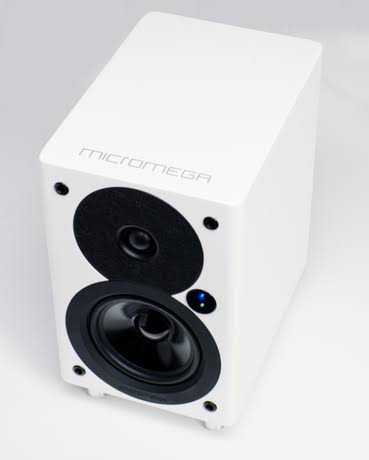
If you are dealing with a speaker issue, follow a simple troubleshooting process instead of immediately assuming that the hardware is broken.
Check the Volume
Start with the simplest solution. Increase the volume and make sure your device is not muted.
Some phones and computers have separate volume controls for the operating system and individual applications. Check both.
Check the Audio Output
Your device may be sending sound to another device.
For example, your computer could be connected to headphones while you expect sound from the built-in speakers. Similarly, a phone may automatically connect to a previously paired Bluetooth device.
Open your audio settings and select the correct speaker as the output device.
Restart Your Device
Restarting your phone, laptop, tablet, or computer can solve temporary software problems.
After restarting, play an audio file and check whether the speaker is working normally.
Test Another Audio Source
If you hear no sound from one video or application, the problem might not be your speaker.
Try another song, video, website, or application. If other audio works normally, the original source may have a problem.
How to Check a Speaker on a Phone
If you think it’s my speaker and your phone is not producing sound, begin by checking the volume controls.
Play a video or music file and gradually increase the volume. Check whether the phone is connected to Bluetooth headphones or another wireless audio device.
You should also inspect the speaker openings. Dust or debris can sometimes affect sound quality. Clean the exterior carefully using a suitable, dry method and avoid pushing anything into the speaker openings.
If your phone has a built-in diagnostic feature, you can also use the manufacturer’s recommended testing options.
How to Check a Speaker on a Computer
Computer speakers can stop working because of incorrect audio-output settings, driver problems, muted applications, or hardware issues.
Start by checking the sound icon and volume level. Then open your computer’s sound settings and confirm that the intended speakers are selected.
If you use external speakers, check their cable and power connection. If the computer has multiple audio outputs, make sure the speakers are connected to the correct port.
Testing headphones can also help. If headphones work but the speakers do not, the problem may be related to the speaker hardware or audio-output configuration.
Why Speaker Maintenance Matters
Taking care of your speaker can help maintain good audio quality. Keep speakers away from excessive moisture, extreme temperatures, and unnecessary physical impacts.
For portable speakers, keep the battery charged according to the manufacturer’s recommendations. Avoid exposing the device to water unless it is specifically designed and rated for water resistance.
Dust should also be kept away from speaker openings. Regular external cleaning can help prevent buildup.
Wired vs. Bluetooth Speakers
There are two common types of external speakers: wired and Bluetooth.
Wired speakers generally provide a direct connection between the audio source and the speaker. They can be simple to set up but require cables.
Bluetooth speakers provide greater portability and fewer cables. However, they depend on wireless connectivity and battery power.
The right choice depends on how and where you plan to use the speaker.
When a Speaker May Need Professional Repair
If basic troubleshooting does not solve the problem, there may be a hardware issue.
Signs that professional inspection may be useful include:
- The speaker produces no sound after testing multiple devices.
- The speaker has sustained physical damage.
- Audio remains severely distorted.
- A wired speaker has a damaged connection.
- A portable speaker will not power on.
- The device becomes unusually hot during operation.
If the speaker is still under warranty, check the manufacturer’s support or warranty options before attempting repairs yourself.
Final Thoughts
Understanding it’s my speaker problems does not have to be complicated. Many speaker issues are caused by simple things such as muted volume, incorrect audio output, Bluetooth connection problems, low battery, or temporary software errors.
Start with basic checks, including volume, connections, audio-output settings, and device restarts. If you are using a Bluetooth speaker, reconnecting and re-pairing the device can often help.
For persistent problems, test the speaker with another device to determine whether the issue is related to the speaker or the original device. If the hardware appears damaged, professional support may be the safest option.
With regular care and basic troubleshooting, you can keep your speaker working reliably and enjoy clearer audio from your devices.